
Short answer: Most “stuck” Windows updates aren’t actually stuck. They’re slow. Give the computer at least an hour or two on a “Working on updates” screen before you do anything, and keep it plugged in. If an update keeps failing, restart, free up disk space, run the built-in Windows Update troubleshooter, and then repair Windows system files with the SFC and DISM tools. If the PC won’t start at all after an update, or you see the same error over and over, stop and get help before you risk your files.
We see this every week in Murrieta and Temecula: a laptop that sat on “Don’t turn off your computer” all night, a desktop that restarts into the same update loop, or a “Something went wrong” error that won’t go away. Here’s what to try, in a safe order.
If the computer still starts, copy your important files to an external drive or cloud storage before you start troubleshooting. Most update problems are fixable without losing anything, but a failing hard drive or damaged system can turn a simple repair into a data problem. Our simple backup plan walks you through it.
This is the most common situation, and patience is usually the fix.
If nothing has changed for several hours and there’s no drive activity at all, hold the power button to shut down, wait a minute, and turn it back on. Windows will often finish or roll the update back on its own. Only do this as a last resort.
When Windows Update shows “failed” or an error code, work through these steps:
It sounds too simple, but a normal restart clears a lot of stuck update jobs. Then open Settings > Windows Update and click Check for updates.
Updates need room to download and unpack. Open Settings > System > Storage and look at how much free space you have. Empty the Recycle Bin, run Storage Sense or Cleanup recommendations, and move large videos and photos to an external drive. If your drive is nearly full all the time, an SSD upgrade with more capacity can solve this and speed things up.
Windows has a built-in tool for this. In Windows 11, search for Troubleshoot settings, open Other troubleshooters, and run the one for Windows Update. In Windows 10, go to Settings > Update & Security > Troubleshoot > Additional troubleshooters. Let it finish, restart, and try updating again.
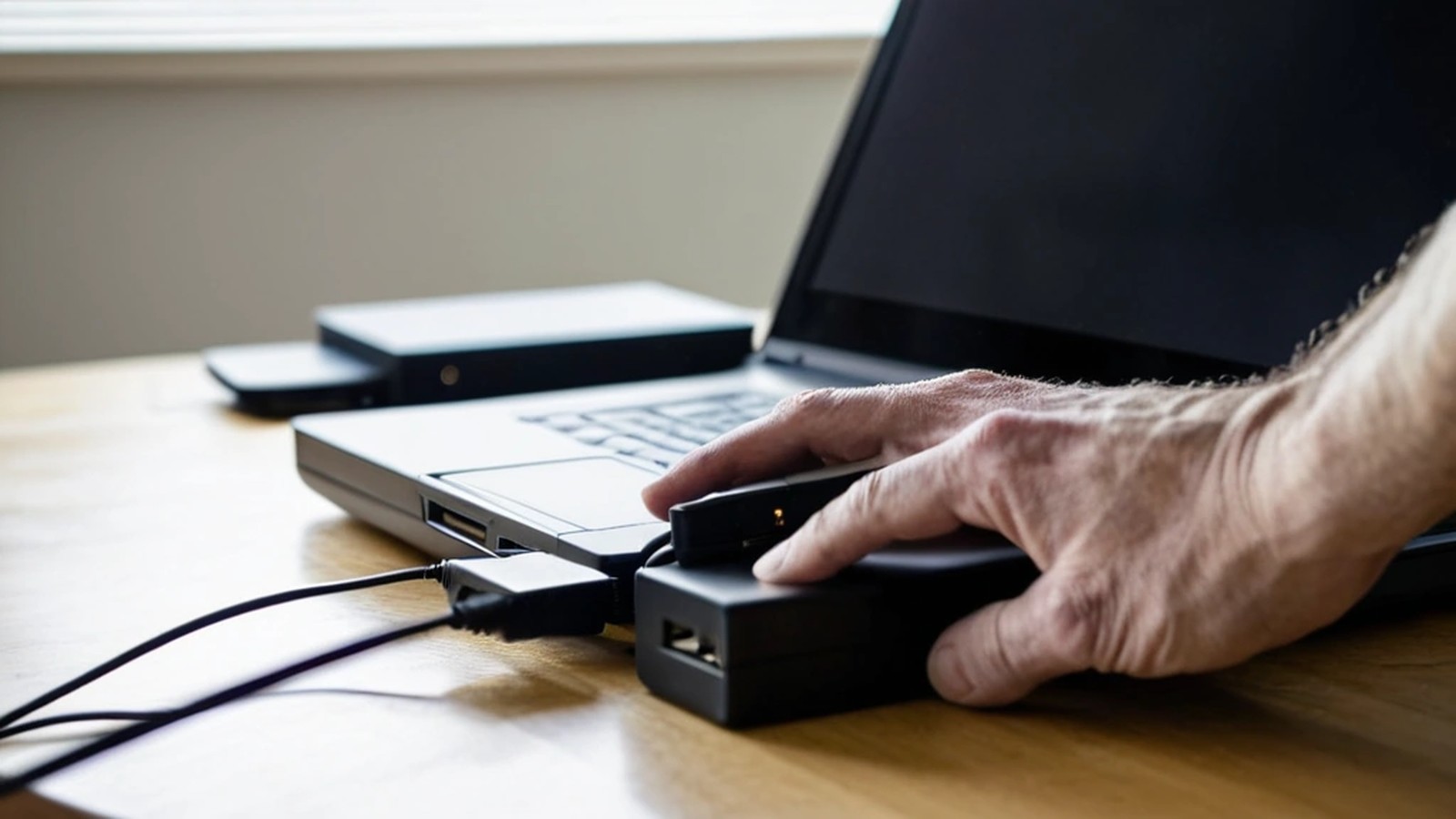
Unplug USB drives, printers, docks and other accessories you don’t need, then try again. Occasionally a device or its driver gets in the way.
If updates still fail, damaged system files may be the cause. Search for Command Prompt, right-click it and choose Run as administrator, then run these two commands one at a time:
DISM /Online /Cleanup-Image /RestoreHealthsfc /scannowEach can take a while. Restart when they’re done and try Windows Update again. If either tool reports problems it can’t fix, that’s a good time to call a technician.
If you need your PC for work right now, you can pause updates from Settings > Windows Update for a short time. Don’t leave them paused for long, though. Updates include important security fixes.
If your computer keeps restarting, shows “Undoing changes” over and over, or won’t reach the desktop, Windows usually opens its recovery options after a few failed starts. From there you can try Startup Repair, or Uninstall Updates to remove the latest quality or feature update.
If you see a blue screen with an error, our blue screen of death guide explains common causes. If you aren’t comfortable in the recovery menus, or you don’t have a backup, this is the point to stop and let a professional take a look.

Windows 10 reached its end of support in October 2025. If your computer is still on Windows 10 and updates keep failing, it may be a good time to look at upgrading to Windows 11 or replacing the PC. See our guide for Windows 10 owners for your options.
How long should a Windows update take? Small monthly updates often finish in minutes. Larger feature updates can take much longer, especially on older PCs and hard drives. Give it time before you assume it’s stuck.
Is it safe to turn off my computer during an update? It’s best not to. If it has truly been frozen for hours with no drive activity, a forced shutdown is a last resort, and Windows will usually recover or roll back.
Why does the same update keep failing? Common reasons include low disk space, damaged system files, a conflicting driver or program, or a failing drive. The steps above cover the most common fixes.
Will fixing Windows Update delete my files? The troubleshooter, SFC and DISM don’t delete personal files. A reset or reinstall can, so back up first.
A. Computer Doctor has helped homes and businesses in Murrieta, Temecula and surrounding cities since 2006. It was founded by Cesar Ramirez, a computer engineer with a B.S. from Cal Poly San Luis Obispo. If your PC is stuck in an update loop, keeps failing updates or won’t start after one, we’ll protect your files first and get Windows healthy again. Learn more about our computer and laptop repair services.
Call 951-595-7758, email [email protected], or submit a trouble ticket to get started.
